
Get back online quickly by fixing common causes of the “Secure Connection Failed” error in your browser.
When you visit a website and see a “Secure Connection Failed” error instead of the page you expected, it can be confusing and annoying — especially when the site worked fine yesterday.
The “Secure Connection Failed” error in Firefox and Chrome typically means your browser can’t establish a secure HTTPS connection with the website you’re trying to visit. It’s a frustrating issue that can appear suddenly, even for trusted sites like Gmail or Facebook. In this guide, we’ll break down the most common causes of this error and show you how to fix it on both Firefox and Chrome — whether you’re a casual user or a website administrator.
What Causes the “Secure Connection Failed” Error?
This error usually means something is blocking or interfering with a secure (SSL/TLS) handshake between your browser and the website. Here are the most common reasons it happens:
- Expired, invalid, or misconfigured SSL certificate
- Incorrect system date/time
- Network restrictions or faulty proxy/VPN setup
- Antivirus or firewall blocking secure connections
- Browser-related issues like cached data or add-ons
Let’s go through fixes for both Firefox and Chrome, starting with quick steps and then diving deeper.
Quick Fixes for All Browsers
Try these simple solutions first:
- Check your system date and time – SSL connections rely on accurate timestamps.
- Restart your router and PC – Can resolve temporary network glitches.
- Try another network or device – Helps identify if the issue is device- or network-specific.
- Disable VPN or proxy temporarily – These can interfere with certificate validation.
- Clear browser cache and cookies – Sometimes corrupted cache causes SSL errors.
- Temporarily disable antivirus HTTPS scanning – Especially for Avast, Bitdefender, or Kaspersky.
- Check browser SSL/TLS settings – Checking settings usually takes less than a minute and can catch hidden problems!
- Check system updates – Make sure your OS is fully updated. If the problem started after a recent update, try uninstalling or rolling it back.
How to Fix “Secure Connection Failed” in Firefox

Firefox is especially sensitive to certificate issues and may block access to a site even when Chrome doesn’t.
Here are the key differences in how Firefox handles certificate-related issues:
- Own CA Trust Store:
Firefox uses its own certificate store (not your OS’s). A certificate trusted by Windows or macOS may still be rejected in Firefox unless manually added to its store. - Strict OCSP Stapling Enforcement:
If a site enables OCSP stapling but doesn’t deliver a proper stapled response, Firefox blocks it. Chrome is more lenient and may still allow the connection. - Enterprise Certificates Not Trusted by Default:
Firefox requires enabling security.enterprise_roots.enabled to trust internal or enterprise certificates. Chrome trusts these by default if they’re in the OS. - Stronger Rejection of Weak Crypto:
Firefox blocks SHA-1 certificates, weak RSA keys (<2048-bit), and other outdated configurations. Chrome may still allow some of these with warnings. - No Overrides for Some Errors:
Firefox won’t let you bypass certain SSL errors (like HSTS failures or self-signed certs). Chrome sometimes lets advanced users bypass with commands like thisisunsafe.
Here’s what you can do:
1. Update Firefox
Outdated versions may have outdated TLS libraries or disabled cipher support.
- Go to Menu > Help > About Firefox
- Firefox will automatically check for updates.
2. Disable HTTPS Scanning in Antivirus
Some antivirus tools (like Avast, Bitdefender) scan secure connections and break them.
- Go to your antivirus settings.
- Look for Web Protection or HTTPS Scanning and disable it temporarily.
3. Check SSL/TLS Settings
- In the address bar, type about:config.
- Click Accept the Risk and Continue.
- Check:
- security.tls.version.min → should be set to 3 (TLS 1.2) to ensure modern, secure connections. Lower values like 1 (TLS 1.0) are outdated and may be rejected by many websites.
- security.ssl.enable_ocsp_stapling → should be true.
- security.enterprise_roots.enabled → should be true if you’re on a corporate network.
If you find anything unusual, right-click and reset it to default.
Be careful: Tweaking about:config settings incorrectly can cause new problems. Only reset entries you recognize.
4. Create a New Firefox Profile
- Go to about:profiles and click Create a New Profile
- Useful if current profile is corrupted and affecting certificates.
How to Fix Secure Connection Failed in Chrome
Chrome usually gives more descriptive SSL errors, but the core causes are similar.
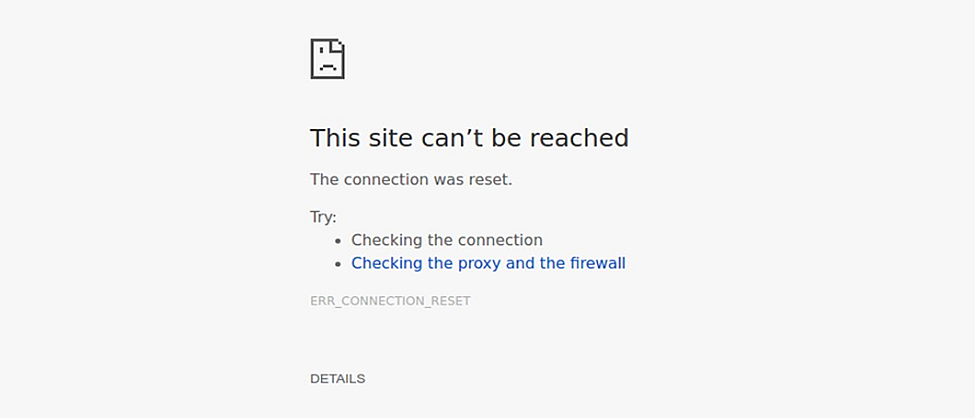
1. Check the SSL Certificate
- Click the padlock next to the URL → Connection is secure → Certificate
- Review:
- Expiry date
- Issuer (should be a trusted CA)
- Subject (should match the domain)
2. Update Google Chrome
- Go to Menu > Help > About Google Chrome
- It will auto-update if needed.
3. Flush DNS Cache
- Open Command Prompt (as Admin) and run:
ipconfig /flushdns
- Also try:
ipconfig /release
ipconfig /renew
4. Clear Chrome’s SSL State
- Navigate to Settings > Privacy & Security > Security
- Scroll to Advanced, and clear browsing data (including cached SSL certs).
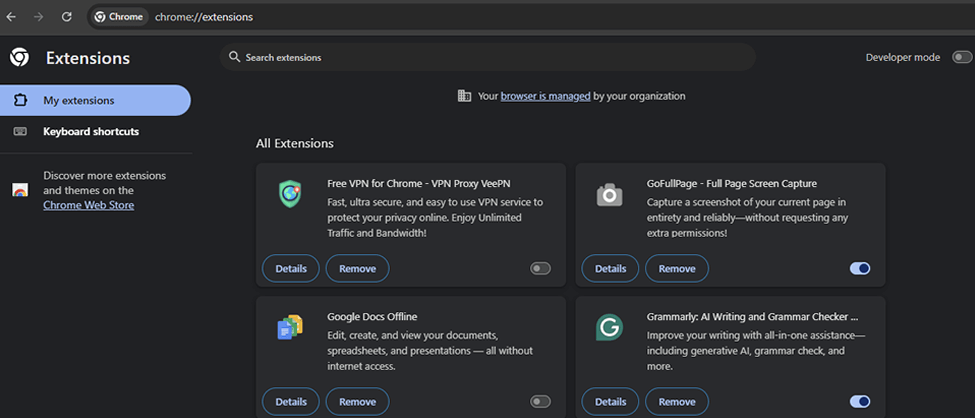
5. Disable Extensions Temporarily
- Go to chrome://extensions/
- Toggle off all extensions to see if one is causing the error.
Additional Tips If You’re the Site Owner
If your visitors are seeing the “Secure Connection Failed” error on your site, you likely have a certificate or server configuration issue.
Double-check the following:
- SSL certificate is valid and not expired
- The domain matches the certificate’s CN or SANs
- Intermediate certificates are properly installed
- Your server supports modern TLS versions (1.2 or 1.3)
- Use tools like: SSL-Checker tool ( great tool to check if the certificate properly installed and all required files in place)
If needed, reissue or renew your SSL certificate through your provider.
Need a new SSL? Cheapsslsecurity.com offers fast, affordable SSL certificates from top CAs.
Advanced Fixes for Tech-Savvy Users
If the basic methods don’t work:
- Reset browser settings to default
- Change DNS settings to Google (8.8.8.8) or Cloudflare (1.1.1.1)
- Try Safe Mode with Networking (Windows) to test without third-party interference
- Scan your PC for malware using Malwarebytes or similar tools
- Test the same site on mobile or a different device
Final Thoughts
The “Secure Connection Failed” error is usually easy to fix once you know where to look — whether it’s your device, browser, or the website itself. For users, following these steps should get you back to browsing safely. For site owners, keeping your SSL certificate up-to-date and properly installed is key.
Need SSL help? Our team at Cheapsslsecurity is here for expert advice and top-tier certificates.