
Learn What to Do When Your Certificate Uses Public Key Pinning
The public key the web browser uses to verify the validity of the SSL/TLS certificate’s signature is incorrect or isn’t pinned to the HTTP header. Key pinning may help you minimize the risk of MITM attacks. However, if you don’t do it right, it can do more harm than good.
Considering that Firefox, Chrome, and other major browsers have eliminated support for HPKP (i.e., HTTP public key pinning), it means that sites shouldn’t be using it.
What ‘MOZILLA_PKIX_ERROR_KEY_PINNING_FAILURE’ Looks Like in Firefox & Chrome
- Chrome: NET::ERR_SSL_PINNED_KEY_NOT_IN_CERT_CHAIN
- Firefox: Error code: MOZILLA_PKIX_ERROR_KEY_PINNING_FAILURE
Wondering what this looks like in the real world? Here’s a look at how Firefox displays the error “MOZILLA_PKIX_ERROR_KEY_PINNING_FAILURE”:

Image caption: The screenshot shows the public key pinning security certificate error in Mozilla’s Firefox browser.
Here’s a quick peek at how this error displays in Chrome to your website visitors:
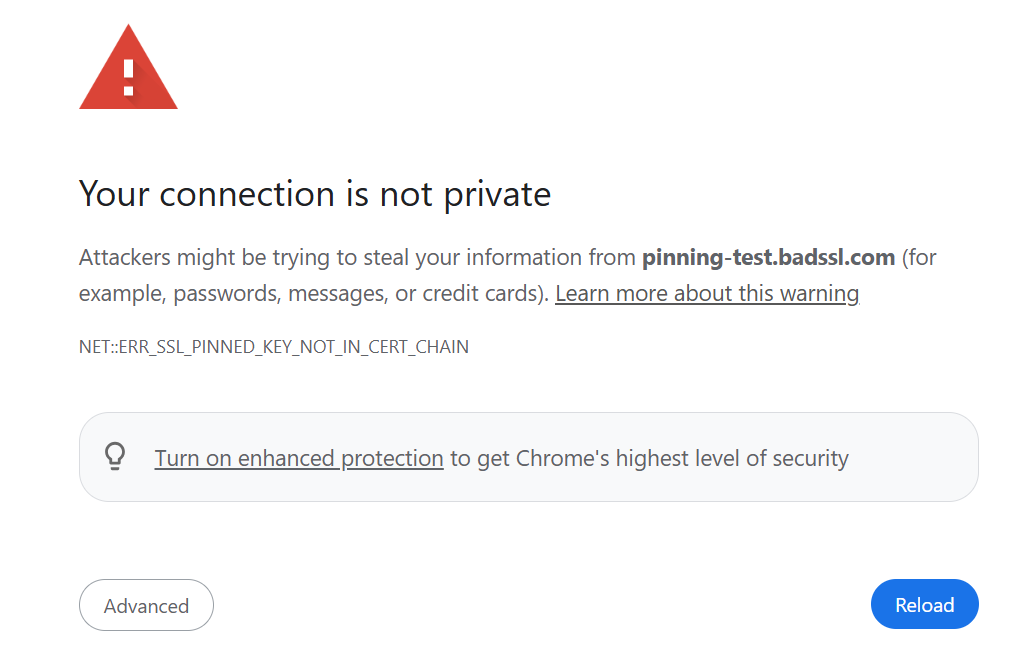
Image caption: The screenshot shows Chrome’s version of the public key pinning security certificate error.
How to Fix the ‘MOZILLA_PKIX_ERROR_KEY_PINNING_FAILURE’ Error
Method #1: Stop Pinning Your Public Keys
You can manually delete the key pin by removing it from Firefox’s SiteSecurityServiceState.txt file, which is located in your profile folder. (For example, mine is located under my user profile at this file path: /appdata/roaming/mozilla/firefox/profiles/k3ipgy29.default-release/sitesecurityservicestate.txt.)
Note: Software such as Thunderbird and Firefox-based browsers (e.g., Librewolf and Waterfox) also include a SiteSecuriyServiceState.txt file. Therefore, ensure you locate the correct .txt file.
Wondering what this file does? It caches HPKP- and HSTS-related settings for domains you’ve visited while using the browser.
To start, you must close the Firefox browser. Once you locate and open the file, scroll through until you find the entries for the domain and delete all related data. Save the file and restart your browser.
If you don’t see the domain information listed in that file, then don’t delete anything from it. Try the next security certificate error resolution method.
Method #2: Fetch the ICA Key and Pin It
Pinning is a risky maneuver and, ideally, should be avoided. However, if you can’t really do without pinning, download a copy of the certificate’s public key from the intermediate CA’s website and pin it in lieu of the leaf certificate.