
As you can notice from the text of the error itself, the “Self-Signed Certificate in Certificate Chain” error indicates that a self-signed certificate is present in the certificate chain but is not trusted by the client’s system.
This often occurs when a website or application uses a self-signed certificate instead of one issued by a trusted Certificate Authority (CA).
A self-signed certificate is signed by the individual or organization that created it rather than a trusted Certificate Authority (CA). In essence, the issuer and the subject of the certificate are the same entity. Anyone can generate a self-signed certificate for free, but this comes with significant caveats.
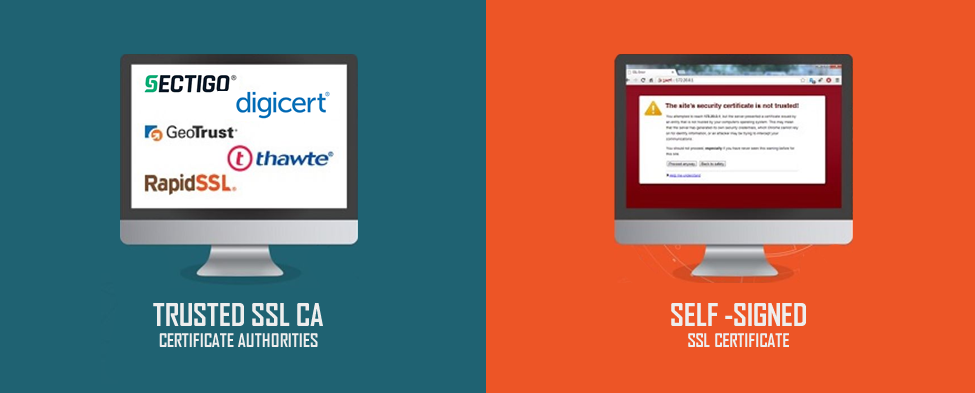
Pros of Self-Signed Certificates
- Cost-Effective: They are free to create and require no ongoing fees.
- Quick Deployment: Setting up a self-signed certificate can be done in minutes, making it a perfect option for internal testing or development environments.
Cons of Self-Signed Certificates
- Lack of Trust: Low trust level related to the warnings that can deter users from proceeding to a website.
- No Validation: Self-signed certificates do not undergo any validation process, meaning there’s no assurance that the entity behind the certificate is legitimate.
- Limited Use Cases: Generally, self-signed certificates are only used for testing.
The Role of Certificate Authorities (CAs)
Certificate Authorities like DigiCert and Sectigo serve as trusted third parties that issue SSL certificates after verifying the identity of the applicant. This validation process can vary based on the type of certificate being requested (Domain Validation, Organization Validation, or Extended Validation), but it typically involves confirming ownership of the domain and, in some cases, verifying the legitimacy of the business.
Pros of CA-Issued SSL Certificates
- Trustworthiness: Browsers recognize CA-issued certificates as legitimate, which means users can browse without encountering security warnings.
- Validation Levels: Depending on the type of certificate issued, CAs provide varying levels of validation that can enhance user confidence.
- Support and Warranty: Most reputable CAs, as Sectigo and DigiCert, offer customer support and warranties, adding an extra layer of security.
Cons of CA-Issued SSL Certificates
- Cost: Unlike self-signed certificates, CA-issued certificates are a paid service.
- Time for Issuance: The validation process can take some time, especially for Organization and Extended Validation certificates.
Most Common Reasons for the “Self-Signed Certificate in Certificate Chain” Error
Now, understanding the main principles of the self-signed and the CA-issued certificates, we can identify the reason for the “Self-Signed Certificate in Certificate Chain” error more easily.
- Development Environments: Developers often use self-signed certificates for local testing and development, so if you make an attempt to connect to these environments from a browser or application that expects a trusted certificate, the error will appear.
- Misconfigured Servers: In some cases, servers may be incorrectly configured to present a self-signed certificate instead of a valid one.
- Expired Certificates: An expired CA certificate can also lead to this error if the system no longer recognizes it as valid.
Steps to Resolve the “Self-Signed Certificate in Certificate Chain” Error
1.Identify if a Self-Signed Certificate is in use
You can do this by using tools like OpenSSL or browser developer tools.
Using OpenSSL
Run the following command in your terminal:
This command will display the entire certificate chain presented by the server. Look for any certificates that are self-signed.
As an alternative, you may use our online tool, which can help you check your server’s SSL configuration.
2.Replace Self-Signed Certificates with Trusted Ones
If you are using a Self-signed certificate, please consider replacing it with a CA-issued certificate. The CheapSSLSecurity Sales Team is always glad to assist you with the SSL product selection process. Contact CheapSSLSecurity Sales Team
3.Trusting Self-Signed Certificates (Not Recommended)
If replacing the self-signed certificate isn’t possible for some reason, you can configure your system or application to trust it temporarily.
Browsers
- Chrome: Go to chrome://settings, search for “Manage certificates” and import your self-signed certificate under the “Authorities” tab.
- Firefox: Navigate to Preferences privacy, scroll down to “Certificates” and click on “View Certificates”. Import your self-signed certificate under the “Authorities” tab.
Java Applications
If you’re working with Java applications, you can add the self-signed certificate to your Java keystore:
Make sure to back up your keystore before making changes.
4.Check the Certificate Chain
Sometimes, the issue may arise from missing intermediate or root certificates in the chain.
Tools like our SSL checker can help you check your server’s SSL configuration and identify issues with your certificate chain.
In case the Intermediate certificate is missing, please install it on your server. If the certificate was purchased via CheapSSLSecurity, you can find all the necessary files on the order page and download them by clicking the “Download Certificate” button. You will get the .ZIP file that includes your certificate + CA-bundle (as well as the separate files: Intermediate and Root). Here you will find the Installation Manuals. If you still need any assistance, the CheapSSLSecurity Support Team is always glad to help: Contact us