
Each of us has faced this error at least once, but probably not all of us have noticed that it appears differently in different browsers.
For example, you may get the “The Webpage is not available” or “The site can’t be reached” warning.
Let’s have a look at what the ERR_CONNECTION_TIMED_OUT error looks like depending on the browser you are using. Typically, browsers offer possible solutions, such as checking the internet connection.
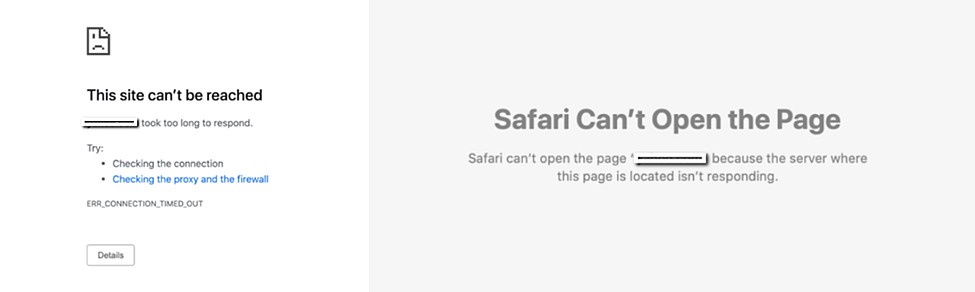
The ERR_CONNECTION_TIMED_OUT error may be due to:
- A network connection problem. This can include a lack of internet connection, slow download speed, overloaded network connection, and more.
- An excess of your browser’s temporary files (cache and cookies).
- Restrictions imposed by the firewall or antivirus software may also cause blocking access to the site.
- Enabled VPN program or working through a proxy server.
- Blocked access due to the location of your IP address. If so, it will be difficult to open the website without third-party programs.
How to fix ERR_CONNECTION_TIMED_OUT?
Let’s look at possible solutions to fix the error.
First of all, check whether the site can be opened on another device. If the error appears on it, then it is related to the server, and you just have to wait for the problem to be fixed. However, if the site opens on another device, most probably, the cause of the error is on your side.
Solution 1
Check the internet connection. The first thing you should do is check your internet connection. It is important to keep in mind that the error can also be due to a very slow connection, not just a lack of one. Try to open different websites to be sure that your device is connected to the internet.
Check the wires. The network cable and power supply of the router should be firmly inserted into the connector.
Reboot the router. Normally it is required to press the on/off button for several seconds or unplug the adapter and wait for about a minute.
Restart the computer.
Run a network connection status check.
Network Connection Troubleshooting on Windows 11:
- Select Start > Settings > Network and Internet.
- Select Status from the left-hand menu.
- Scroll down and select Network troubleshooter.
- A new window Troubleshoot Problems will open. Follow the reflected instructions to complete the diagnostics.
MacOS
Unfortunately, MacOS doesn’t offer a general troubleshooting tool that works the same way it does in Windows.
Solution 2
Clear temporary browser files. In some cases, cached data and cookies in the browser can cause errors. These errors occur mostly when they are out of date. In these cases, the problem is solved by simply clearing the cache.
Solution 3
Disable firewall and antivirus (not recommended). Running antivirus and firewall can restrict or even deny entry to certain pages if they deem them unsafe for you. Sometimes this can happen even if the website is completely harmless.
IMPORTANT! Please be completely sure that the page you are trying to access is safe.
Let’s see how to disable the firewall on Windows.
Please note, on Mac OS, the firewall is disabled by default.
Disabling Firewall Windows 11
- Click. → Settings → Privacy & Security → Windows Security → Firewall & network protection.
- Select a network profile: Domain network, Private network, or Public network.
- Under “Microsoft Defender Firewall”, switch the setting to Off.
Solution 4
Disable Proxy and VPN. Sometimes, the “ERR_CONNECTION_TIMED_OUT” error may be directly related to the proxy server settings or the enabled VPN program. Please try to disable VPN applications or Proxy Server.
Disabling the Proxy Server on Windows 11:
- Access the Start menu “Settings”.
- Choose “Network & Internet” from the “System” menu. Scroll down and find the “Proxy” section.
- Find the “Use a proxy server” under the “Manual proxy setup” section.
- Turn off the proxy server by switching the toggle to the “Off” position.
MacOS
- Choose Apple menu > System Settings, click Network in the sidebar > click a Network Service > Details > Proxies.
- Make sure that all the boxes under Select a proxy server to configure are unchecked.
- Click Apply Now.
Solution 5
Reset your browser settings. If the previous solution doesn’t work in your case, try restoring the default browser settings.
Reset Google Chrome to Default Settings
- Open Chrome.
- At the top right, select More and then Settings.
- Select Reset settings Restore settings to their original defaults Reset settings.
Mozilla Firefox
- Click the Firefox button in the top left corner.
- Choose the Help option.
- In the extended menu, choose Troubleshooting Information.
- At the top-right, click the Reset Firefox button and confirm the reset.
- Firefox will close, and a new Window will open to import saved data. Click Finish.
- When finished, Firefox will open again and will be reset.
Internet Explorer
- Close all open windows and programs.
- Open Internet Explorer, select Tools > Internet options.
- Select the Advanced tab.
- In the Reset Internet Explorer Settings dialog box, select Reset.
- In the box “Are you sure you want to reset all Internet Explorer settings?” choose Reset.
- When Internet Explorer finishes the process, select Close, and then select OK. Restart your PC to apply changes.
Safari
With the release of Safari version 9.0 (macOS El Capitan), the Reset Safari to defaults option has been removed by Apple.
*Commands in different operating systems may vary or may not be available at all.